Sharpen an Image Without Drawing a Halo Around It
Sharpening is a claim that an edge was already there and only needs to be easier to see. If the edge was never recorded, a sharpen slider invents one, usually as a bright line.
- No signup for the first three
- Deleted after 24 hours
JPEG, PNG, WebP, or AVIF. No account for the first three repairs.
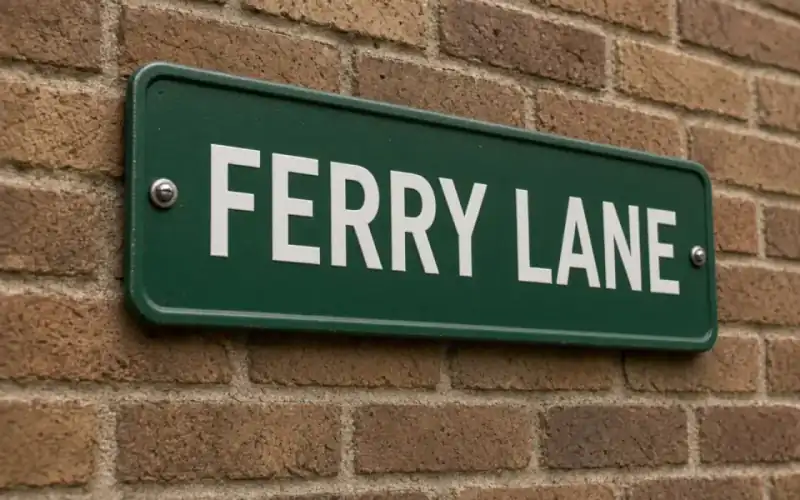
Left: the sign out of focus. Right: the clear photo.
Sharpen
A halo is the signature of a mask that went too far
An unsharp mask finds a difference between the picture and a blurred copy of itself, then adds that difference back. On a hairline against a sky the difference is a thin dark ridge and a thin light ridge. Turn the amount up and the ridge becomes a white outline you can see at arm’s length. That outline is not detail the camera captured. It is the filter announcing itself. If a file already has that outline, do not send it through unblur. Unblur will treat the halo as an edge and make it more confident.
Re-export the photograph from the editor with the sharpening amount at zero, or as close to the camera original as you still have. A JPEG that was sharpened, saved, sharpened, and saved again has two generations of halos, and the second one is baked into the blocks. The tool cannot subtract a filter that has been quantized. The slider will show you a louder version of the same mistake.
Screenshots and logos are the other failure. Their edges are already one pixel wide and perfectly hard. Sharpening them adds a fringe and can move a letter. If the subject is type, read the blurry-text page and consider retyping. If the subject is a mark, read the logo page. This page is for a photograph whose focus was a little soft, not for a vector that was rasterized.
Unblur is the mode, and it is not a strength slider
FixPhotoQuality does not publish an amount from 0 to 100. Unblur is one credit, on the free tool, and the comparison is the control. If the result is too crisp, keep the original. There is no second knob that will give you half of what the model did. A second unblur pass usually traces the first pass and makes skin look embossed. One job, then a decision.
Order matters when the file is also noisy. Denoise first, look at a flat wall and a hair, then unblur only if the cleaned file is still soft. Unblurring first draws the noise into little edges, and the denoise that follows has to sand those edges off. Night photographs belong on the night page for that reason. A daylight portrait that is merely a little soft can start here.
The free download stops at 3,200 px on the long edge. A sharpened file that was already under that size downloads whole on Free plan. A 4× enlarge is a different mode, on Pro, and it is not required to see whether the sharpen was honest. Commercial use is allowed on every plan when you have the rights to the file. The upload and the result are deleted after 24 hours. A failed job returns the credit. The subscription fee is not refunded.
What a finished sharpen looks like at 100 percent
Open the slider and find three places: a catchlight in an eye, a fabric weave or a brick, and a smooth cheek or sky. The catchlight should stay a small shape, not a painted dot with a ring. The weave should break the surface a little more clearly than before, without a white trench on one side. The cheek should not gain pores that were not in the original, and the sky should not gain a contour line along a roofline.
If those three places disagree, trust the worst one. A skyline halo is enough reason to keep the soft file even when the eye looks better. Print size makes the halo easier to see, not harder. An 8×10 at 300 ppi wants about 3,000 px on the long edge, which fits in the free download. A poster does not. Do not enlarge a halo just because the calculator says you are short of pixels. Fix the edge, or decline it, before you buy size.
Face restore is the wrong tool for a portrait that is only slightly soft. It rebuilds features and can change the person. Unblur leaves the features where they were and only tries to make the existing blur less dominant. If the eyes have already turned to mush, the face page is the one to read, and it starts on Pro. This page stops at the honest edge.
A worked frame
Take a 2400 by 1600 daylight portrait that a previous editor already sharpened at a high amount. You can see a one-pixel bright line where dark hair meets a bright wall. Do not run unblur on that export. Re-export from the camera file with the mask at zero, then unblur once for one credit. The long edge stays 2400, inside the 3,200 px free download, so Free plan keeps the whole file. Check the hairline, a weave on a collar, and the catchlight. If the hairline grows a trench, the new export was still too crisp and the original camera JPEG is the file to keep. Commercial use is allowed if the sitting is yours to process. The pair of files is deleted here after 24 hours, so copy the keeper the same afternoon. A second unblur on the result is how skin becomes embossed. There is no amount slider to split the difference.
Three steps on this file
01
Remove an existing unsharp mask
Re-export from the camera file if a previous editor already drew a halo.
02
Denoise only if the file is speckled
Then run unblur once. Do not stack a second sharpen on the result.
03
Check a skyline, a weave, and an eye
One halo is a failed sharpen even if the eye looks crisper.
Settings that matter here
- A one-pixel fringe on a dark coat against snow is the tell.
- JPEG blocks plus sharpening produce a grid. Denoise or read the artifact page first.
- Do not sharpen a screenshot of text and then trust the letters.
- The mock provider is a local preview. A Replicate token runs the hosted unblur model.
Where this shows up
A lens that missed by a little
The subject is recognizable and the edges are woolly. Unblur is the test. 4× is not.
A scan that the scanner softened
Flatbeds add a little blur. Unblur after you have dusted the glass, not before.
Limits and formats
JPEG, PNG, WebP, and AVIF decode on the server. HEIC from a phone needs to be exported to JPEG first. The preview is not watermarked. Guest and Free plan downloads are capped at 3,200 px on the long edge. Pro and Studio download the full file. Nothing on this site is an ad.
Guest
- Price
- $0
- Credits
- 3 / day, no account
- Batch
- 1
- Upload
- 6 MB
- Long edge
- 2,000
- Download
- 3,200 px
Free
- Price
- $0
- Credits
- 3 repairs / day
- Batch
- 1
- Upload
- 8 MB
- Long edge
- 2,560
- Download
- 3,200 px
Pro
- Price
- $12/mo
- Credits
- 120 credits / month
- Batch
- 12
- Upload
- 20 MB
- Long edge
- 4,096
- Download
- Full size
Studio
- Price
- $29/mo
- Credits
- 500 credits / month
- Batch
- 40
- Upload
- 40 MB
- Long edge
- 8,192
- Download
- Full size
| Plan | Price | Credits | Batch | Upload | Long edge | Download |
|---|---|---|---|---|---|---|
| Guest | $0 | 3 / day, no account | 1 | 6 MB | 2,000 | 3,200 px |
| Free | $0 | 3 repairs / day | 1 | 8 MB | 2,560 | 3,200 px |
| Pro | $12/mo | 120 credits / month | 12 | 20 MB | 4,096 | Full size |
| Studio | $29/mo | 500 credits / month | 40 | 40 MB | 8,192 | Full size |
Questions worth asking first
Can I try this without an account?
Yes. Guests get 3 credits a day. 2×, denoise, and unblur cost one. Colorize costs two. 4× and face restore start on Pro. 8× is Studio.
Is the preview watermarked?
No. Guest and Free plan downloads are capped at 3,200 px on the long edge. Pro and Studio download the full file.
Is there a sharpen amount?
No. Unblur is one pass and one credit. If it is too strong, keep the original.
What if the job fails?
The credit is returned. A failed job is not charged. A finished file you dislike does not return the credit or the subscription fee.
How long do you keep the upload?
Uploads and results are deleted 24 hours after the job is created.
Can I use the result commercially?
Yes, on every plan, including the free tool, when you have the rights to process the file.
Related tools
From the guides
Run it on the file you actually have
Three guest repairs a day, no card. If the slider invents a detail you cannot defend, do not download it. Paid plans cancel anytime and are not refunded. A failed job is not charged. The file is deleted after 24 hours.