Fix Grainy Photos: AI Noise Removal in Seconds
Grain you chose is texture. Noise you did not choose is a veil. The repair is not “make it smooth.” It is to lift high-ISO speckle, scanner dust, and color blotches while the edge of a cheek or a brick stays put.
- No signup for the first three
- Deleted after 24 hours
JPEG, PNG, WebP, or AVIF. No account for the first three repairs.
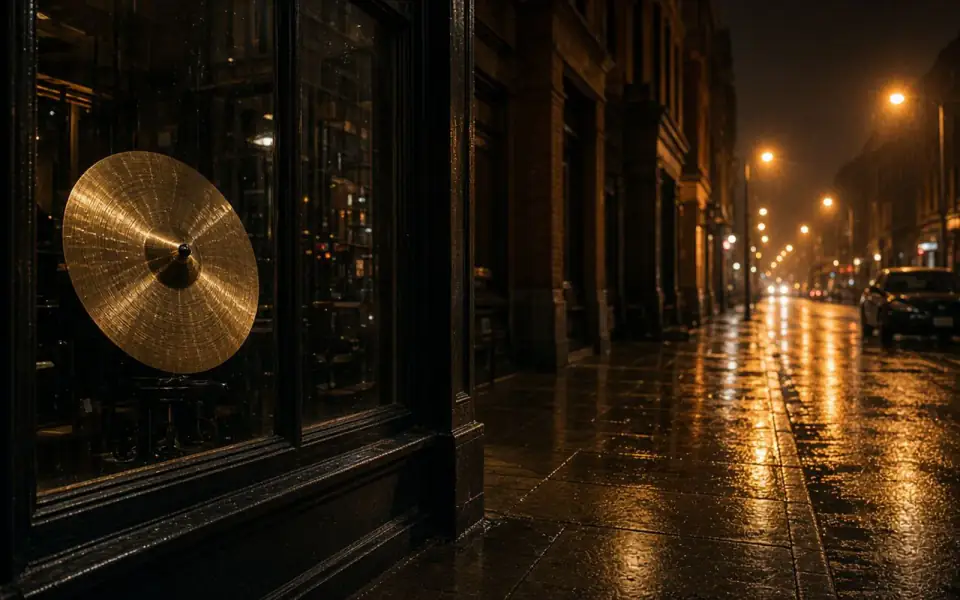
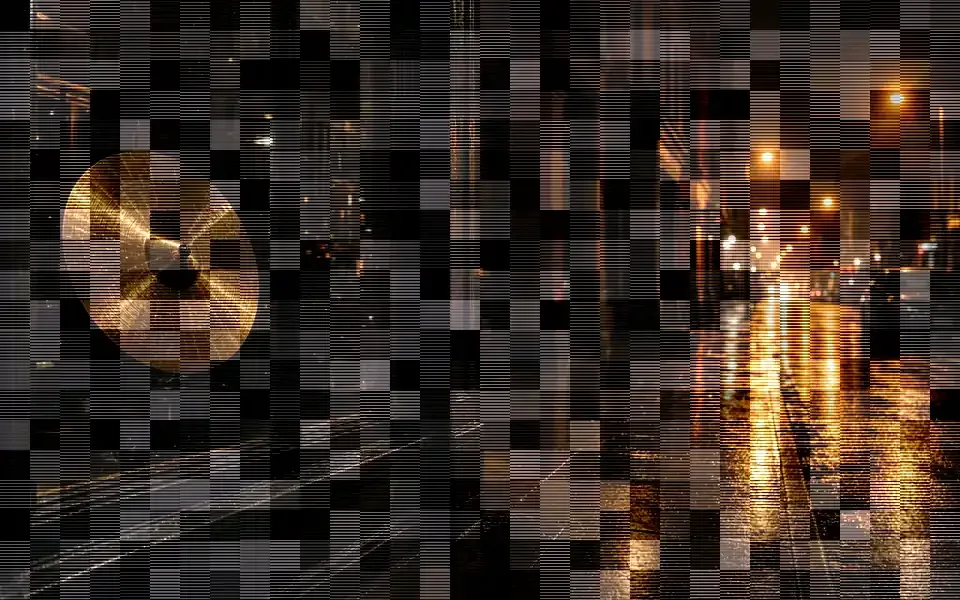
Left: coarse grain over the street. Right: the cleaner photo.
Grainy photo
Tell film grain from a mistake
Film grain clumps and follows the exposure. Shadows are heavier. Highlights are finer. If that is the picture, stop. A denoise will sand it toward plastic and you will spend the afternoon trying to put it back. Phone noise in a night kitchen is different: colored speckles, hot pixels, and blotches that do not follow a film curve.
Scans add another layer. Dust, a faint color cast from the lamp, and a fine speckle from the scanner’s own sensor sit on top of whatever the print already had. That speckle is worth cleaning. A deep scratch is not noise. The denoise will not rebuild missing emulsion, and it should not pretend to.
Heavy JPEG on top of noise makes the blotches square. Denoise before you sharpen. Sharpening first carves the speckles into fake detail, and the denoise then has to undo your work.
How far the pass should go
Skin, sky, and walls show the damage first. If pores vanish and the sky becomes a poster, you went too far. Hair, a fabric weave, and distant foliage should still break the surface. The slider is how you see that. A one-tap filter hides the original and asks you to trust the wax.
A noisy photo that is also small needs two passes in order: denoise, then a modest upscale. Upscaling noise prints larger speckles. The modes are separate so you can see which one did the work. 2× and denoise are on the free tool. 4× is Pro. 8× is Studio.
Guest repairs do not require an account. Three a day. The preview has no watermark and free pages show ads. The free download stops at 3,200 px on the long edge. Pro and Studio download the full file and can batch.
Noise has a color, and the color is the tell
High-ISO phone noise in a kitchen at night is magenta and green, speckled, and worse in the shadow under a cabinet than on the lamp. Film grain in a 35mm negative is a clump that follows exposure, heavier in the coat and finer in the sky. Scanner dust is a third thing: sharp white specks and faint color threads that sit on the surface, not in the scene. If you denoise all three with the same appetite you will sand the film, miss the dust, and over-smooth the phone. Look at one flat wall and one textured edge before you trust the whole frame.
Order matters more than the strength slider you wish we had. Denoise first. Sharpening a noisy file outlines the speckles and hands the next pass a field of fake edges. Upscaling a noisy file prints the speckles larger, which is why a small night photo should be cleaned and then sent to 2×, not the other way around. 2× and denoise are the guest modes. 4× waits for Pro. If the denoise turns skin into wax, keep the original. A successful file you dislike is still a spent credit. A job that errors returns the credit.
A wedding reception is a batch, not a hero frame. Batch starts at twelve on Pro and forty on Studio. Test three frames that cover flash, tungsten, and the dark edge of the dance floor. If those three hold hair and fabric, the rest of the card is a reasonable bet. If they go plastic, no plan will save the set, and cancelling the subscription later does not refund the month. The files themselves are deleted after 24 hours on every plan.
A last look at the flat wall
The wall, the sky, or the table is the control surface. Speckle should leave. A faint unevenness can stay. If the control surface becomes one plastic color, the denoise ate the photograph and the grain page has done its job by telling you to stop. Night sets are a batch only after that control surface survives on three frames, flash, tungsten, and the dark edge of the room.
What to keep beside the slider
A reception card is a good stress test because the light changes every ten frames. Pick the flash frame, the tungsten frame, and the one where the sensor gave up. If those three keep a hairline and lose the magenta speckle, the rest of the card is a Pro batch of twelve or an Studio batch of forty. If they go plastic, stop spending. The credit for a finished waxy frame stays spent. The credit for a provider error comes back. Neither outcome refunds a month you already started, and neither outcome keeps the file past 24 hours.
Three steps on this file
01
Decide if the grain is the picture
If you like the film curve, do not denoise. If the speckle is high ISO or scanner dust, continue.
02
Denoise and inspect skin and sky
Drag the slider across a cheek and a flat wall. Plastic means you should keep the original.
03
Upscale only the cleaned file
Run 2× after the denoise if the frame is also small. Do not upscale the noisy original.
Settings that matter here
- Night receptions are a batch problem. Batch starts at Pro, twelve at a time, or Studio at forty.
- A failed denoise returns the credit. A waxy success does not.
- Leave a copy of the scan untouched. The repaired file is deleted after 24 hours.
- Color blotches in the shadows are noise. A yellow cast across the whole print is a white-balance problem and wants a different tool.
Where this shows up
A phone picture after sunset
The sensor climbed to a high ISO and the shadows filled with magenta specks. Denoise is for that veil, not for a beauty blur.
A dusty flatbed scan
The print is fine and the scan added a mist. Clean the mist, then decide whether the print itself needs a larger file.
Limits and formats
JPEG, PNG, WebP, and AVIF decode on the server. HEIC from a phone needs to be exported to JPEG first. The preview is not watermarked. Guest and Free plan downloads are capped at 3,200 px on the long edge. Pro and Studio download the full file. Nothing on this site is an ad.
Guest
- Price
- $0
- Credits
- 3 / day, no account
- Batch
- 1
- Upload
- 6 MB
- Long edge
- 2,000
- Download
- 3,200 px
Free
- Price
- $0
- Credits
- 3 repairs / day
- Batch
- 1
- Upload
- 8 MB
- Long edge
- 2,560
- Download
- 3,200 px
Pro
- Price
- $12/mo
- Credits
- 120 credits / month
- Batch
- 12
- Upload
- 20 MB
- Long edge
- 4,096
- Download
- Full size
Studio
- Price
- $29/mo
- Credits
- 500 credits / month
- Batch
- 40
- Upload
- 40 MB
- Long edge
- 8,192
- Download
- Full size
| Plan | Price | Credits | Batch | Upload | Long edge | Download |
|---|---|---|---|---|---|---|
| Guest | $0 | 3 / day, no account | 1 | 6 MB | 2,000 | 3,200 px |
| Free | $0 | 3 repairs / day | 1 | 8 MB | 2,560 | 3,200 px |
| Pro | $12/mo | 120 credits / month | 12 | 20 MB | 4,096 | Full size |
| Studio | $29/mo | 500 credits / month | 40 | 40 MB | 8,192 | Full size |
Questions worth asking first
Will denoise remove film grain?
It will try. If the grain is the point, leave the file alone.
Why do other apps look waxy?
They blur until the noise is gone, and the edges go with it. Compare on a slider before you accept the file.
Can I fix grain and pixelation together?
Denoise first, then upscale. Combining them hides which step invented the texture.
Is there a watermark?
Not on the preview. Free downloads are size-capped instead.
Do you show ads on the free plan?
Free pages show ads. Pro and Studio are ad-free. The upload card does not contain an ad.
What happens to the photo?
It is deleted 24 hours after the job is created, original and result.
Related tools
From the guides
Run it on the file you actually have
Three guest repairs a day, no card. If the slider invents a detail you cannot defend, do not download it. Paid plans cancel anytime and are not refunded. A failed job is not charged. The file is deleted after 24 hours.