Restore Old Photos Online: Fix Scratches, Fading & Blur
An old print fails in layers: the paper yellowed, the scan added dust, the face went soft, and sometimes the emulsion is simply gone. This tool can denoise, unblur, enlarge, and rebuild a collapsed face. It will not repaint a torn corner or invent color.
- No signup for the first three
- Deleted after 24 hours
JPEG, PNG, WebP, or AVIF. No account for the first three repairs.
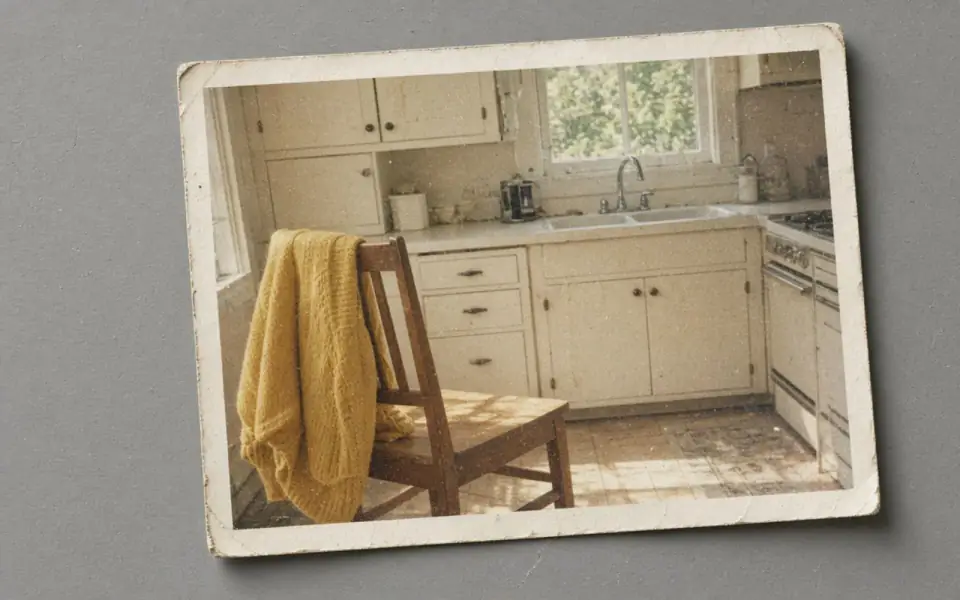
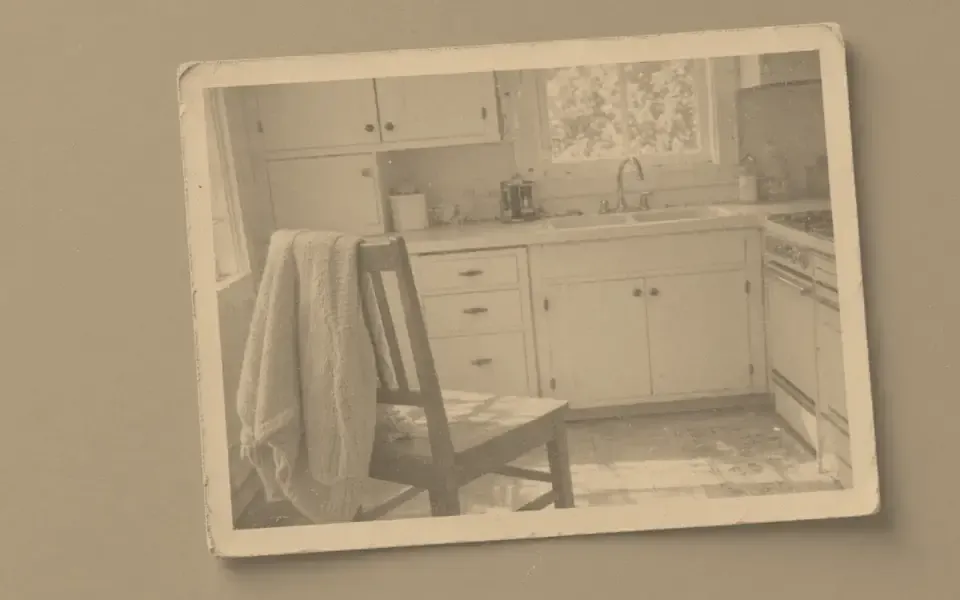
Left: the faded black-and-white photo. Right: the clearer scan.
Old photo
Separate the print from the scan
Look at the file before you blame the camera that took it in 1974. Flatbed scanners add their own grain and a color cast from the lamp. A phone picture of a print adds glare and a second generation of softness. If you can rescan, do that first, at the scanner’s optical resolution, and keep the scan as a TIFF or a high-quality JPEG. Then bring that file here.
Fading is a loss of contrast and dye, not a blur. Denoise can lift dust. It will not restore a dye that left the paper. Unblur helps when the scan or the lens was soft. Face restore helps when a small head turned to mush. None of those put a missing shoulder back.
Say the limit out loud before a relative sees the slider. The result is a prediction. If the face becomes more charming and less like the person, keep the scan.
A practical order for a shoebox
One test frame, not the whole box. Denoise if the scan is speckled. Unblur if the subject is soft. 2× if you need a larger file for a 4×6. Stop and look. Studio is the plan that batches forty and unlocks 8× for a tiny original. Pro batches twelve and unlocks 4× and face restore.
The free tool lets you try three repairs with no account, and no watermark on the preview. That is enough to know whether this print is a candidate. The free download is capped. The files, successful or not, are deleted after 24 hours, so copy anything you want to keep.
Colorization is a different product. This page does not offer it. A sharp black-and-white scan is a better input to a colorizer than a dusty one, which is the honest handoff.
The paper is part of the picture
A faded print has a curve the scanner may already have stretched. If the blacks are crushed and the whites are yellow, a denoise will not put the middle tones back. Do that in the scan software, gently, and keep a copy of the untouched scan. Then look for the damage that is actually noise: dust, a fine mist, a color speckle in the coat. Scratches that cross a cheek are missing paper. They stay visible, and they should. Filling them with guessed skin is how a restoration becomes fiction.
Faces in old prints are the case for the paid face mode, and the case against using it blindly. A 1940s snapshot has a grain structure and a lighting style that a modern face prior will sand off. If the eyes get rounder and the mouth gets a contemporary smile, you have left the person. Stop at denoise or a modest 2×. 4× and face restore are available when the test frame survives that check. 8× is for a tiny booth photo, on Studio, and it invents the most.
A shoebox is a batch only after three honest tests. Pro batches twelve, Studio forty. Subscriptions are not refunded, so the test is the cheap part: three guest repairs a day, no card, preview unmarked, download capped. Copy what you want. Twenty-four hours later the upload and the result are deleted whether the reunion has happened or not.
A last look at the paper
The scratch that crosses the coat is part of the object. A restoration that heals it has started to write fiction. Dust that sits on top of the emulsion can go. The yellow of the paper can stay if you decide the paper is the picture, or it can be corrected in the scan software before you upload. Colorize can guess a coat color, and that guess is not a record. The colorize page says how to denoise first and how to reject a dye you cannot defend.
What to keep beside the slider
Old prints fail in a stack: fade, dust, a scratch, a soft scan, and a face that was small even in 1952. Work the stack in that order. Correct the fade in the scan software. Denoise the dust. Leave the scratch if it breaks the paper. Unblur only if the scan is soft. Enlarge only if the calculator says the paper you want is short of pixels. Face restore last, and only with a second picture nearby. Guests can try the free steps three times a day. The shoebox is not uploaded as a library. It is deleted, frame by frame, 24 hours after each job.
The decision you can defend
When the stack is done, the print should still look like its decade. A modern pore structure on a 1952 face is the tell that face restore went too far. Keep the softer file. The free tool can show you that on unblur or 2× before Pro spends two credits on the face mode. Download the keeper the same day. The shoebox on our side does not survive the night, and a reunion next month will not find it here.
Three steps on this file
01
Rescan if the file is a photo of a photo
Glare and a second lens are damage you can avoid. Optical resolution, then a clean JPEG.
02
Clean dust before you enlarge
Denoise the speckle. Then decide if unblur or 2× is the next credit.
03
Batch only after one frame survives
Studio is for the box. Do not batch a repair you have not judged.
Settings that matter here
- Torn paper and ink stains are outside this model.
- Face restore can help a collapsed portrait and can also change the person.
- Keep the scan. We delete our copy after 24 hours.
- A yellow cast may be the paper. Do not denoise it away and call that restoration.
Where this shows up
A wedding portrait for a new frame
You need a 8×10. Measure the scan with the print calculator before you pay for 4×. Many scans are already large enough.
A tiny booth photo
The face is an inch tall on the paper. 4× or 8× is the conversation, after you accept that the likeness is a guess.
Limits and formats
JPEG, PNG, WebP, and AVIF decode on the server. HEIC from a phone needs to be exported to JPEG first. The preview is not watermarked. Guest and Free plan downloads are capped at 3,200 px on the long edge. Pro and Studio download the full file. Nothing on this site is an ad.
Guest
- Price
- $0
- Credits
- 3 / day, no account
- Batch
- 1
- Upload
- 6 MB
- Long edge
- 2,000
- Download
- 3,200 px
Free
- Price
- $0
- Credits
- 3 repairs / day
- Batch
- 1
- Upload
- 8 MB
- Long edge
- 2,560
- Download
- 3,200 px
Pro
- Price
- $12/mo
- Credits
- 120 credits / month
- Batch
- 12
- Upload
- 20 MB
- Long edge
- 4,096
- Download
- Full size
Studio
- Price
- $29/mo
- Credits
- 500 credits / month
- Batch
- 40
- Upload
- 40 MB
- Long edge
- 8,192
- Download
- Full size
| Plan | Price | Credits | Batch | Upload | Long edge | Download |
|---|---|---|---|---|---|---|
| Guest | $0 | 3 / day, no account | 1 | 6 MB | 2,000 | 3,200 px |
| Free | $0 | 3 repairs / day | 1 | 8 MB | 2,560 | 3,200 px |
| Pro | $12/mo | 120 credits / month | 12 | 20 MB | 4,096 | Full size |
| Studio | $29/mo | 500 credits / month | 40 | 40 MB | 8,192 | Full size |
Questions worth asking first
Will scratches disappear?
Light dust often will. A tear or a missing patch will not be honestly rebuilt.
Can you colorize it?
Yes. Colorize costs two credits. Denoise the scan first. The dyes are a guess.
Is the first try free?
Yes. Three guest repairs a day, no card.
Which plan batches a family archive?
Studio is $29/mo, 500 credits, batches of 40, and 8×. Pro is $12/mo and batches of 12.
Are old photos kept for a gallery?
No. They are deleted after 24 hours.
Do failed scans cost credits?
No. A failed job is not charged.
Related tools
Run it on the file you actually have
Three guest repairs a day, no card. If the slider invents a detail you cannot defend, do not download it. Paid plans cancel anytime and are not refunded. A failed job is not charged. The file is deleted after 24 hours.